


Mechanical Keyboard: RGB Theme
4.5322.00 Reviews
App Specs
- Version
- 1.8.1
- Updated On
- License
- Free
- Downloads
- 1,000,000+
- Developer
- Neli Creative
- Categories
- Personalization
- Platform
- Android
Screenshots
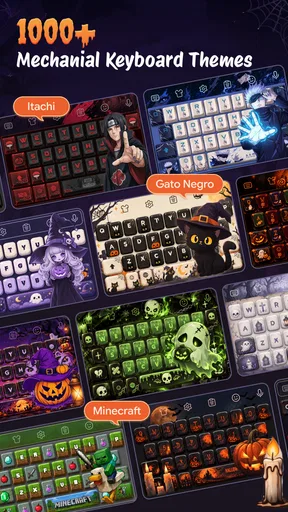
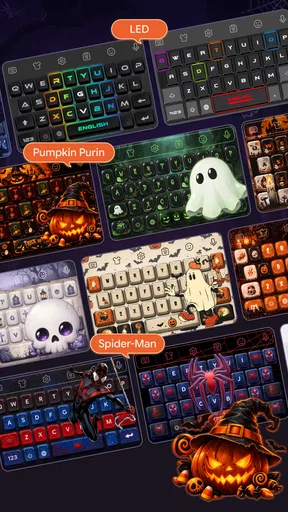
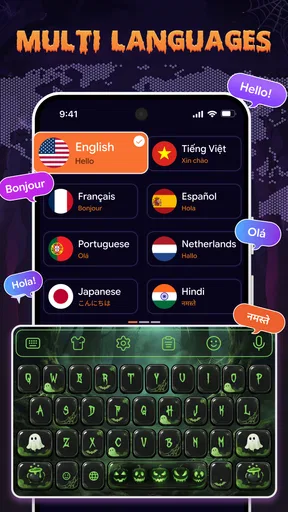
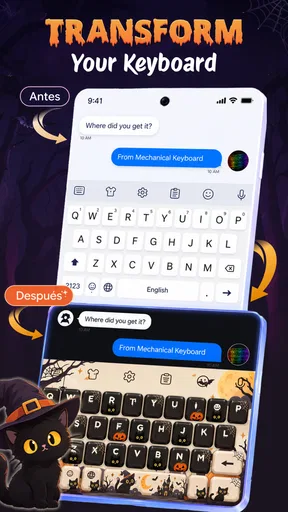
 Analysis by AppCompare
I like tools that make a hobby easier to approach without turning every choice into homework. DIY RGB Mechanical Keyboard is aimed at people who want to explore keyboard styles and make their typing setup feel more personal. It is a free personalization app from Neli Creative, and its emphasis on RGB looks gives it an immediate appeal if you enjoy changing the appearance of your keyboard rather than leaving it at its default. I would treat it as a customization companion, not as a replacement for the keyboard itself.
Start with one clear goal
Before browsing, I find it useful to decide what I want the keyboard to feel like: bright and playful, calm enough for work, or easy to read in a dim room. That small decision makes a theme search more focused. Instead of trying every colorful option, I can judge each one against a real use case, such as writing messages on the commute or keeping a desk setup visually consistent.
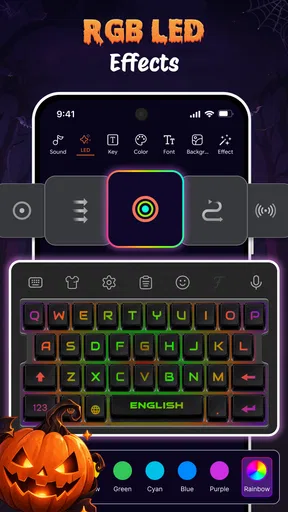
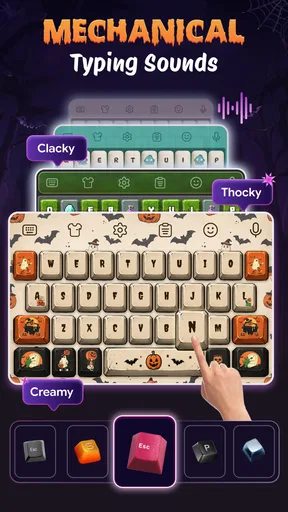
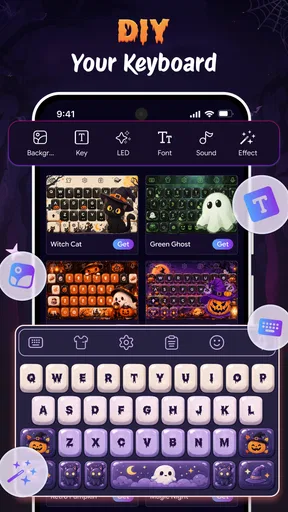
The app’s appeal is straightforward: it lets you explore keyboard themes and styles, including LED-inspired looks. That is a good fit for someone who enjoys personalization but does not want to spend time building a physical keyboard or adjusting desktop software. I would start with a theme that improves legibility, then experiment with more expressive effects once I know the basic look works for my everyday typing.
Make appearance work for your routine
A bright RGB style can be fun, but the most striking option is not always the most comfortable one. When I choose a keyboard look, I pay attention to whether the keys remain easy to distinguish at a glance. For long messages, a calmer design can be more practical than a busy pattern; for a quick, personal touch, a bolder choice may be exactly right.
One useful habit is to check a chosen theme in the places where you actually type. A design that looks appealing while browsing may feel distracting when answering a work message or writing a longer note. I would switch styles with a purpose rather than continually chasing novelty: a readable everyday choice first, then something more vivid when I want a change of mood.
What to expect from a personalization app
Compared with a phone’s standard keyboard settings, a dedicated theme app gives the experience more visual personality. The trade-off is that appearance and typing tools are different needs. If I mainly want reliable predictions, language support, or a particular text-entry feature, I would compare keyboard apps on those practical points rather than assume that a decorative theme solves them.
It also helps to keep expectations grounded. The name may bring physical mechanical keyboards to mind, but this is a mobile personalization app, not a guide to buying switches, soldering a board, or assembling a computer keyboard. That distinction matters: it suits someone who wants a keyboard look on a phone, while a hands-on hardware hobbyist should seek a dedicated building resource instead.
Worth Reading Before You Choose

Flipboard Shows What News Apps Must Do Beyond the Feed

Switching to Android Auto Means Rethinking Your Driving Routine

Google Calendar Makes a Crowded Week Easier to Manage

Ludo King Makes the Most of the Minutes Between Plans

Baby Panda World Brings Quick Play to Modern Phones, but Its Game Library Feels Busy

ESPN’s Live Game View Makes Following Close Games Easier
Who will enjoy it—and who may not
I can see this working well for anyone who likes changing a phone’s appearance, especially people drawn to colorful lighting-inspired designs. It is also an easy kind of customization to try when you want a small visual refresh without changing the whole device. The app is rated for Everyone, and its free price makes it accessible for casual exploration.
It is less compelling if you already prefer a plain keyboard, find visual effects distracting, or are looking for deep control over typing behavior rather than appearance. A standard keyboard may be the better choice if consistency and familiar features matter more to you than a fresh look. I would also avoid choosing a vivid style purely because it looks dramatic in a preview; comfort during everyday typing is the better test.
A practical way to try it
For a realistic routine, imagine opening your phone between errands to reply to a family message. A legible theme can make the keyboard feel a little more personal without slowing you down. Later, when you have a spare moment, you can browse more expressive styles and decide whether any are comfortable enough to keep. This kind of quick comparison is more useful than changing the look repeatedly without noticing how it affects your typing.
If a style feels cluttered, I would move to a simpler one rather than trying to force myself to like it. If it looks good but makes the keys harder to read, that is a sign to favor clarity. These are modest choices, but they help distinguish a theme that is enjoyable in a preview from one that suits the way you use your phone.
The app has an average rating of 4.4 from around 500 ratings, with 1M+ installs. Those figures suggest that keyboard personalization has a broad audience, but they do not tell me whether a particular visual style will suit my eyes or habits. I would use them as context, then make the decision based on how the app feels in my own daily typing.
A colorful option, with realistic expectations
I’d use this section to set a practical test for any theme: notice whether the keys stay easy to pick out during the messages you type most, not just whether the colors catch your eye. That gives the browsing a purpose and makes it easier to settle on a style you can live with. From there, the next useful step is checking how a choice holds up across everyday conditions.
What I would check before settling on a style
When trying a new keyboard appearance, I would check whether the letters remain easy to spot, whether the look feels comfortable in both bright and dim surroundings, and whether I still enjoy it after the novelty fades. That quick check is more revealing than choosing only by the most eye-catching preview. It also gives me a repeatable way to compare styles instead of relying on a vague first impression.
Another sensible approach is to change one thing at a time. If I switch a theme and immediately decide I dislike the result, I may not know whether it was the color, contrast, or overall visual busyness that bothered me. Comparing a simple look with a brighter one helps identify the difference. I would keep the option that makes common tasks feel clear, not merely the one that seems most elaborate.
How it fits among alternatives
DIY RGB Mechanical Keyboard sits in the personalization corner of the keyboard world. A phone’s built-in keyboard settings are often enough for someone who only wants a basic appearance change, while a general-purpose keyboard app may be a better match for someone prioritizing typing tools. This app makes the most sense when the visual theme is the reason for trying something new.
It is also worth separating phone customization from desktop RGB control. If your goal is to coordinate lighting on a physical keyboard, this mobile app is not the same kind of tool as software made for a specific hardware setup. If your goal is simply to give your phone keyboard a more colorful character, that distinction is less important. Knowing which problem you want to solve prevents a mismatch before you spend time exploring.
Small habits that make browsing more useful
I would browse with a shortlist in mind: one restrained style for routine messages and one more playful alternative. That keeps the choice manageable and makes it easier to decide whether a new look adds anything. It also avoids treating customization as a task that needs constant attention. Once I find a style that is readable and pleasant, I would leave it in place long enough to judge it fairly.
If you share your phone screen often, a restrained keyboard appearance may feel more appropriate than a strong visual statement. If your phone is a personal space and you enjoy colorful interfaces, a bolder theme may be more satisfying. The useful question is not whether one look is objectively best; it is whether it fits the context in which you type most often.
People who are new to keyboard themes may wonder whether this is a hardware-building tool. I would not approach it that way: it is for mobile keyboard personalization. Others may ask whether it is worth trying if they already like their current keyboard. If you have no desire to change its appearance, there is little reason to switch; if you are curious about RGB-inspired styling, the free app offers a low-commitment way to explore.
Where I draw the line
My main reservation is that a visual customization app can only be as useful as the styles feel during real typing. A theme may look exciting but lose its appeal if it competes with the text or makes the keys less comfortable to scan. I would not expect a new appearance alone to improve typing speed or solve frustrations with the keyboard’s behavior. Those are separate questions, and they may call for a different keyboard app.
The app is currently version 1.5.6 and supports Android 9 or later. I would check that basic compatibility before getting attached to the idea, then judge the experience on the phone I use every day. Its Everyone age rating makes it suitable for a broad audience, but the most important personal test remains whether the look is comfortable and useful for the way you type.
My take after weighing the trade-offs
DIY RGB Mechanical Keyboard is best for someone who wants a more expressive phone keyboard and enjoys trying visual styles. I like the focused premise: it offers a route to a brighter, more personal look without asking me to treat phone customization as a hardware project. For that purpose, it is an approachable option, and the free price makes experimenting feel low-risk.
I would skip it if I wanted detailed typing features, physical keyboard advice, or a guaranteed productivity improvement. For everyone else, I suggest starting with a readable everyday look, then testing a more colorful alternative in ordinary situations rather than judging it from a preview alone. That is the most reliable way to decide whether its RGB-inspired personality belongs on your screen.
Hey there, keyboard enthusiasts! If you've ever thought about customizing your typing experience, you're in for a treat. Let’s dive into the world of the DIY RGB Mechanical Keyboard app. This app is your gateway to building your own mechanical keyboard right on your smartphone. Whether you're a seasoned builder or a curious newbie, this app has something for everyone. So, grab your tools and let’s get started!
Getting Started with Your DIY Adventure
The first time I opened the DIY RGB Mechanical Keyboard app, I was greeted with a colorful and intuitive interface. The app breaks down the complex process of building a mechanical keyboard into easy-to-follow steps. It’s like having a friendly keyboard guru in your pocket. From selecting the right switches to choosing the perfect keycaps, the app covers it all.
Choosing Your Components
One of the coolest features is the component selection tool. You can browse through a vast library of switches, keycaps, and cases. The app provides detailed specs for each item, helping you make informed decisions. I spent hours experimenting with different combinations. It’s like being a kid in a candy store, but for keyboard parts!
The app also offers recommendations based on popular builds. If you're overwhelmed by the choices, you can start with these suggested setups. Trust me, it’s a great way to ease into the hobby without feeling lost.
Step-by-Step Building Guide
Now, onto the actual building process. The app guides you through each step with clear instructions and helpful tips. I found the visuals to be particularly useful. Each step is accompanied by diagrams and photos, which makes it super easy to follow along. Even if you’ve never soldered a switch in your life, the app makes it feel totally doable.
Plus, it’s super interactive. You can tick off tasks as you complete them, which gives you a satisfying sense of progress. I felt like a DIY pro in no time!
Adding Your Personal Touch
Once the basic setup is done, it’s time to add some flair. The app allows you to customize the RGB lighting effects. With a range of colors and patterns, you can truly make your keyboard one-of-a-kind. I had a blast playing around with different light shows. Who knew typing could be so mesmerizing?
Additionally, the app suggests creative mods and add-ons. Want to add a wrist rest or custom keycaps? The app has got you covered with tutorials and links to purchase the extras.
Community and Support
Another standout feature is the community section. You can connect with other keyboard enthusiasts, share your builds, and get feedback. The app also hosts regular challenges and events to keep you engaged. It’s like joining a club of like-minded tinkerers, and the camaraderie is fantastic.
If you ever hit a snag, the app’s support team is just a tap away. I reached out with a question about a tricky soldering step and received a helpful response within hours. It’s reassuring to know help is readily available when you need it.
Final Thoughts
In conclusion, the DIY RGB Mechanical Keyboard app is a must-have for anyone interested in building their own keyboard masterpiece. It’s user-friendly, informative, and downright fun. Whether you’re looking to build your first keyboard or your tenth, this app is a fantastic resource.
So, if you're ready to dive into the world of mechanical keyboards, download the app now and start creating your ultimate typing machine. Happy building!
Pros
- Customizable lighting effects.
- High-quality build materials.
- Versatile switch options.
- User-friendly interface.
- Compatible with multiple devices.
Cons
- Limited keycap design choices.
- Higher price point.
- Requires some setup time.
- Occasional software bugs.
- Not ideal for non-tech users.
FAQs for Mechanical Keyboard: RGB Theme
What is the DIY RGB Mechanical Keyboard app?
The DIY RGB Mechanical Keyboard app is designed to allow users to customize and control their mechanical keyboards with RGB lighting. It offers a range of features for personalizing key colors, effects, and macros, providing an enhanced typing or gaming experience tailored to individual preferences.
How do I connect my keyboard to the app?
Connecting your keyboard to the DIY RGB Mechanical Keyboard app typically involves using a USB cable or Bluetooth, depending on your keyboard model. Ensure your keyboard is compatible with the app, then follow the in-app instructions to establish a connection and begin customizing your settings.
What customization options are available in the app?
The app offers extensive customization options, including RGB lighting effects, color schemes, and key mapping. Users can create profiles for different purposes, such as gaming or productivity, and save them for quick access. Additionally, the app supports macro programming to automate repetitive tasks.
Is the app compatible with all mechanical keyboards?
While the DIY RGB Mechanical Keyboard app supports a wide range of mechanical keyboards, compatibility varies by brand and model. It's important to check the app's supported devices list or consult your keyboard's manufacturer to ensure seamless integration and functionality.
Does the app affect my keyboard's performance?
Using the DIY RGB Mechanical Keyboard app should not negatively impact your keyboard's performance. In fact, it can enhance usability and efficiency through advanced customization features. However, make sure your device meets the app's system requirements to ensure smooth operation.


